Lab 3 - Client and Server#
In this session, we will delve into the concepts of client and server from a
practical point of view and, at the same time, learn the utility called netcat
(nc command): a basic tool used to diagnose problems in networks, among other
uses.
The client-server communication model is graphically described in the following figure:
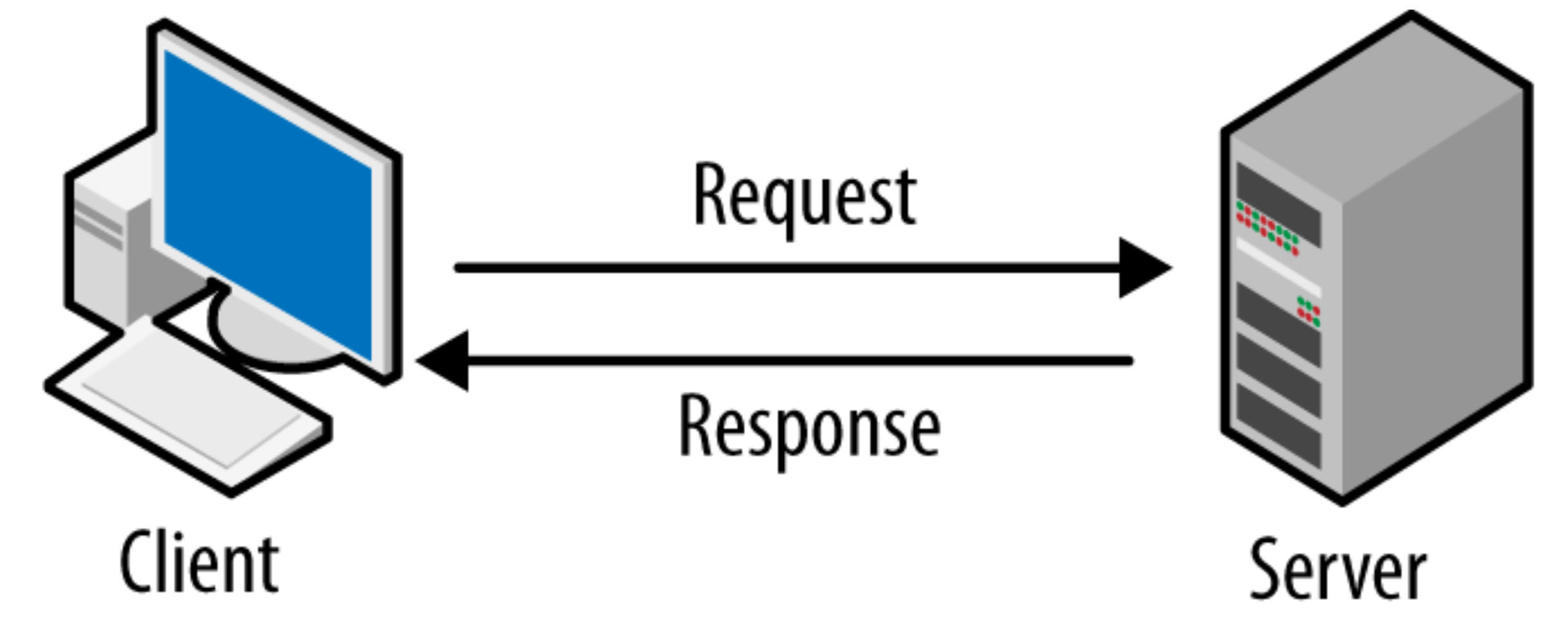
Fig. 3 Basic communication scheme between a client and a server.#
The client makes requests to the server and the servers responds to these requests. Some considerations to take into account:
The server has a reactive behavior, i.e., it waits for incoming requests to act on the communication.
The client has a proactive behavior, i.e., it makes requests to the server when needed and initiates the communication.
A node can have both roles at the same time. It is possible that, within a more complex environment, the same node can be the client of a server and the server of other different nodes. The separation of these two roles is logical, not phisical.
netcat#
To create simple connections between nodes using the client-server model, one of
the simplest tools is netcad. In the terminal, nc command is used. If you
do not have it installed, you must install the netcat package:
sudo apt install netcat
Case Studies#
The following case studies are intended to be performed in the lab in pairs (each member of the pair with his or her lab PC).
Note
It would also be possible to practice at home using 2 virtual machines launched at the same time. Each virtual machine will have its own IP address, and therefore one can act as a server and the other as a client. You only need to have 2 imported virtual machines.
One member of the pair will act as the client and the other will act as the server. It is recommended to exchange the roles in the different exercices so that both members play the role of client and server.
In order to stablish the communication between them, it is necessary to know the
both IP addresses. We can know them using the ip command:
ip addr
Also it is possible to obtain IP addresses using the ifconfig command,
although the first method is preferable:
sudo ifconfig
These commands show us the IP addresses available on our machine. It is in the
form of 4 bytes separated by dots. For example: 192.168.1.120. The IP
addresses are associated with the network interfaces available in the node. As
our virtual machine has only one network interface (simulated) we will only see
one valid IP address.
Note
Both commands show a special network interface called lo whose IP is always
127.0.0.1. This interface belongs to the local network of the machine itself,
and should be ignored for the time being.
Once you have taken note of which IP address dcorresponds to the client and which to the server, you can start with the following practical exercises of communication between client and server.
Client-Server Chat#
Type in the server the command:
nc -l -p 5400
The server listens with the -l (listen) option on port 5400. By default
TCP is used, although it could be done with UDP by adding the -u option.
Once the server is listening, type in the client:
nc <server-IP> 5400
Replace <server-IP> with the IP of the server you wish to connect to. This
will cause nc to open a TCP connection to the server.
Once connected, the client communicates with the server as if they shared keyboard and screen: any text entered by either will be seen by both whenever it is confirmed with Enter.
To abort the communication just press Ctrl c on either one. This aborts the program and closes any communication in progress.
Sending and Saving Text#
Type in the server the command:
nc -l -p 5400 > output.txt
As before, the server listens on port 5400. Now whatever it receives will be
redirected to the output.txt file. As soon as the client connects and starts
sending data, the file will acquire content.
Once the connection is closed, you can view the contents of the file with cat.
Do not forget to remove the file with rm.
Once the server is listening, type in the client:
nc <server-IP> 5400
Write a test sentence such as: You'll be free, hackers, you'll be free.
The Enter key does not close the connection, it simply enters a line break. When you have finished typing the text, you can close the connection with Ctrl c.
Viewing Received Content in the Server#
Type in the server the command:
nc -l -p 5400
The server linstens on port 5400. Now what it received will be displayed on
the screen.
Create a file named file.txt with any content, for example:
At our call, hackers, at our call.. You can use nano to create it.
nc <server-IP> 5400 < file.txt
Do not forget to remove the file with rm at the end.
Sending a File from the Client (Upload)#
Type in the server the command:
nc -l -p 5400 > book.pdf
The server linstens on port 5400 and what it receives will be saved in the
file book.pdf.
Once finished, do not forget to remove the file with rm.
Download the course workbook with wget. Replace en with es if you want the
Spanish version:
wget https://uclm-esi.github.io/redes1-lab/en/redes1-lab-en.pdf
Now you can send it to the server using:
nc <server-IP> 5400 < redes1-lab-en.pdf
Once finished, do not forget to remove the PDF with rm.
Note
You can view the content of the PDF by opening the file with the evince
command. It will open a graphical program to view the PDF passed as an argument.
You must close the PDF in order to regain the control of the terminal, which is locked in the meantime. You can also use Ctrl c to end the program from the terminal.
The file name under which the PDF is saved on each side of the communication may be the same or different. Each communication actor assigns a name to it.
Saving Data from the Server#
Type in the server the command:
nc -l -p 5400
The server listens on port 5400, but can also receive keyboard input. This
input will be sent to the client when it connects.
Let’s try this. Type a sentence such as:
We'll kick out those dirty licenses.
Once the client connects, it will receive the text you have introduced. If you continue introducing text, the client will continue receiving it.
Wait until the server has entered all text. When ready, run:
nc <server-IP> 5400 > file.txt
The file file.txt will be updated with the data sent by the server. You can
open another terminal and view the contents of the file with cat.
Do not forget to remove the generated file with rm.
Viewing a Server File in the Client#
Create a file named file.txt with any content, for example:
Join us now and share the software. You can use nano to create it.
nc -l -p 5400 < file.txt
The server listens on port 5400 and as soon as the client connects it will
receive the content of the file.
When the server will be ready, run:
nc <server-IP> 5400
The content of the file that the server has made available will be displayed on the screen.
Sending a File from the Server (Download)#
Download the course workbook with wget. Replace en with es if you want the
Spanish version:
wget https://uclm-esi.github.io/redes1-lab/en/redes1-lab-en.pdf
This will create the file networks1-lab-en.pdf in the directory from where
wget was launched. Now start the server with:
nc -l -p 5400 < redes1-lab-en.pdf
The server listens on port 5400 and as soon as the client connects it will
receive the PDF.
Do not forget to remove the PDF file with rm at the end.
When the server will be ready, run:
nc <server-IP> 5400 > book.pdf
When connected, the server will send the PDF and the client will save it in the file called book.pdf .