
Lab 1 - Command Line I#
A terminal is the operating system software that allows users to enter data into the computer and to obtain the output of the programs.
In every GNU/Linux installation (and in general of any operating system) there is a terminal application or a terminal graphical emulator.
In our reference operating system, we can use LXTerminal, available at:
Aplications -> System Tools.
What is a command?#
A command is a program that can be executed from the terminal. It accepts a series of arguments and either produces a specific output or causes a specific change in the system.
Command structure#
A command is comprised of its own name, arguments and, optionally, options:
command [--option=value] [-f] [argument1 argument2 ...]
commandis the command name. We will see many examples later.--optionand-fare the options. Options usually have 2 versions: the long version, which is usually prefixes with two hyphens; and the short version, which is only prefixes with one hyphen. Options modify the usual mode of operation of a command.argument1andargument2are the arguments. In many cases, it is not necessary to specify them because they take default values.
Usually, all commands have the --help and -h options, which allows to show the
command help, where the different options and arguments the command accepts are
explained.
Reading the Manual#
Although as explained above, all commands can provide help on their own options and arguments, sometimes much more information is needed since some commands may require configuration files, use environment variables, produce output files and so on.
There is a specific command to request more information about other commands:
man.
The terminal manual provides access to a full help page about the requested command, with the different options, arguments or their format. It also includes if the program uses environment variables, information on how to report bugs or the program’s license.
Navigating through the pages of the manual can be counterintuitive at first. Here a few tricks:
Up Arrow, Down Arrow, Page Up, Page Down allow to scroll up and scroll down the page.
q ends the execution of the command
man./ allows to search for a string in the current document. Once in search mode, you can use n or N to search down or up in the document, respectively.
For example, open the manual page for the date command and find how to specify the
output format of the command:
Execute
man date.Press the / key.
Type in the string to search: format.
Press n until find the section where the format is explained
Note
These keyboard shortcuts explained for navigating through the manual pages are also
valid for navigating through any file using the less command, which will be
discussed later.
Getting familiar with the file system#
The file system is the part of the operating system that allows to interact with the storage devices on our machine.
The first directory to know in GNU/Linux is the root: /. A storage device is
usually mounted in this directory, usually a partition of a hard disk. Within this
directory there are usually the following:
/boot: contains the boot configuration as well as the kernel images./dev: contains a complete virtual structure of directories and files that represent the different devices present on the machine./etc: the configuration of the installed services in the system./home: contains the personal directories of users. In the provided virtual machine you can find/home/alumno, which is where you will work./mediaand/mnt: paths where, depending on the distribution, temporary devices such as USB sticks or external hard disks are usually mounted./opt: path where third-party applications are installed./proc: virtual structure of directories and files with information related to the running programs./root: personal directory of therootuser, which is the system administrator./run: virtual structure of directories and files with temporary data from running processes./srv: directory where files that will be served to other systems are stored (in disuse)./sys: virtual structure with files used by the system itself./tmp: temporary directory. Depending on the configuration, it can be volatile (lost after each reboot) or persistent./usr: directory where all operating system programs are installed./var: path where all variable files, such as databases, log files or file caches, are stored.
Note
The term “virtual structure” refers to a whole hierarchy of files and directories that are created in the system at a logical level, but do not represent directories or files stored on any hard disk or other storage device.
Working with the file system#
On many occasions we need to consult the content of files, modify them, visit other directories, execute commands in different paths… For this, we must know the basic commands to make queries to the file system, change the working directory, create, modify and delete files, copy or move them to different directories.
pwd: shows the current working directory.ls: lists the files and directories. If we pass a path, it will show the list corresponding to that path.cat: shows the content of a given file.cd PATH: allows to change the current working directory. If we do not pass a path, the personal user directory will be set. If instead of a path, we use the-character, it allows to return to the previous working directory.mkdir DIRECTORY: creates a new directory.rmdir DIRECTORY: deletes a directory (as long as it is empty).rm PATH: deletes a file.With
-rit allows to delete a directory with its subdirectories and files recursively.
touch FILE: creates an empty file or updates its access date if it already exits.cp ORIGIN DESTINATION: copy a file to another path or directory.mv ORIGIN DESTINATION: moves a file to another path or directory (can be used to rename files).
Absolute and relative paths#
When we talk about file system paths, we can refer to them in an absolute way, giving the complete path to the file or directory, or in a relative way, where we give a part of the path only, relative to the current directory.
And what is the current directory? When we are in a terminal, we can query it using
the pwd command. When we open a terminal, the initial working directory is the
personal user directory (or “home”). For example, /home/alumno.
Whenever you specify a path whose first character is a / it is an absolute path.
When it starts with any other character, it is a relative path to the current
directory.
There are also some special directory specifiers:
~: refers to the personal user directory (or “home”)..: refers to the current working directory...: refers to the “parent” directory of the current directory.
For example, if we open a terminal, our working directory will be /home/alumno.
The absolute path /var/log and the relative paths ../../var/log or
~/../../var/log are equivalent and refer to the same directory.
Note
Pressing the Tab, the terminal will automatically complete the name of your command or path. In case more than one option exists, pressing the Tab twice all possible options for completion will be shown.
Permissions#
In every operating system, files in the file system are assigned a series of permissions that indicate to the system which users can carry out the different operations on each file or directory.
In GNU/Linux, the permissions are divided into 3: read, write and execution. And each permission can be defined differently for 3 different user “roles”: the user who owns the file, users who are members of the group that owns the file, and all other users (neither the owner nor members of the group that owns the file).
To query the file permissions, you can use the ls -l command (see the manual for
the full meaning of its output).
Run in your terminal ls -l /etc/hosts:
$ ls -l /etc/hosts
-rw-r--r--. 1 root root 185 Dec 16 17:00 /etc/hosts
In this case, the first character indicates that it is not a special type of file;
the next 3 characters (rw-) indicate the permissions assigned to the user who owns
the file; the next 3 (r--), the permissions of the owner group and the next 3
(also r--) the permissions for other users. After that, we can also see the name
of the user and the owner group (user root and group root).
In summary, this file only has read and write permissions for the root user and
read permissions for all other users, whether they are in the root group or not.
The way to modify the permissions of a file is by using the chmod command:
chmod MODE PATH
This command forces us to pass, first, the mode we want to set for the file, and second, its path.
The mode can be defined through characters or through its octal version, which is just a numerical representation of the 3 groups of permissions that we can configure for the file.
In the following image you have an explanation of how the permissions are translated between textual and octal modes:
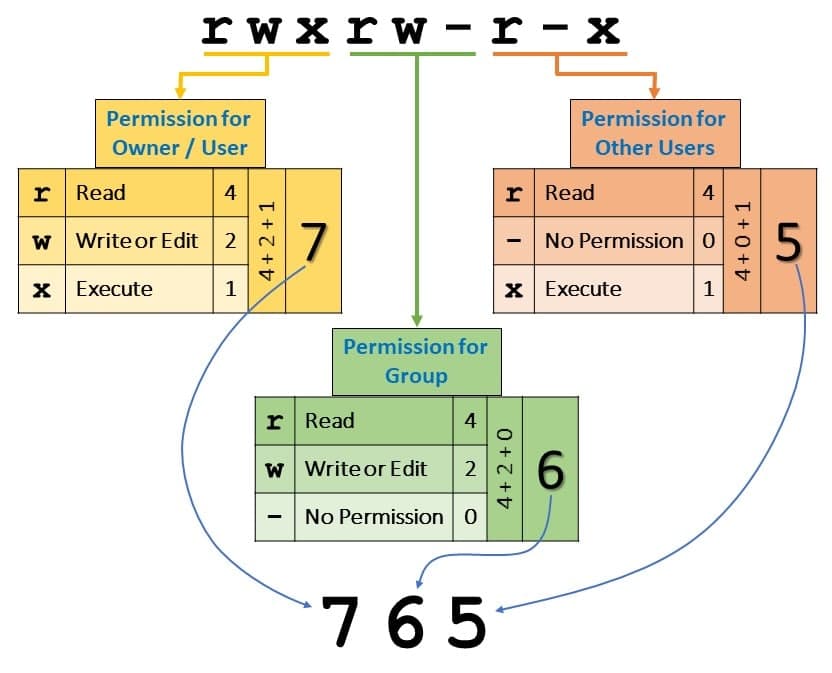
Fig. 1 Permission conversion.#
Exercise#
To consolidate what we have seen during this session, we are to carry out a series of practical exercises using a terminal, the command line and some of the commands seen previously:
Check if in the
/directory of your machine there are any additional files or directories to the ones mentioned in this session.Solution
The following items are shown:
bininitrd.imgeinitrd.img.oldlib,lib32ylib64lost+foundsbinvmlinuzyvmlinux.old
Most are symbolic links that are kept for compatibility with older versions.
initrd.imgandvmlinuzare links to the boot and kernel images.lost+foundis the directory where corrupted files are recovered when doing checks on any ‘ext’-type file system.Look up in the help or the manual for the
lscommand how to show the details of each file and check the size of the/etc/fstabfile.Solution
Use
man lsorls --helpto find that the appropiate solution isls -land runls -l /etc/fstab$ ls -l /etc/fstab -rw-r--r-- 1 root root 826 feb 8 11:45 /etc/fstab
Create a
licensesdirectory inside your user directory.Solution
mkdir licensesLook up in the help or the manual for the
cpcommand how to make a recursive copy of a directory and copy the/usr/share/common-licensesdirectory to the one created in the previous step. Is the obtained result the expected one?Solution
Look for in the
cpmanual or incp --helpthe recursive mode and use it withcp -r:cp -r /usr/share/common-licenses licensesDoing so will create a
licenses/common-licensesdirectory. Thin, about why this happens, what was the expected result and how to achieve it.Using
lsand the needed options, compare the permissions and ownership of the directories/usr/share/common-licensesandlicenses/common-licensesin your personal user directory. Do you see any difference? Why are those differences happening?Solution
Run
ls -lon the 2 indicated directories and check that the main difference is the owner of the files and the dates.Change the working directory to
licensesand, from there, create aGPLsdirectory in your personal user directory.Solution
cd licensesymkdir ~/GPLsomkdir ../GPLsCopy the 4 files starting with
GPLfrom thelicensesdirectory to theGPLsdirectory.Solution
cp common-licenses/GPL* ../GPLs/Change the working directory again to
GPLsand modify the files permissions to make them only readable and writable to your user (remove the permissions to the rest of the users of the system).Solution
cd ~/GPLs, andchmod 600 *orchmod go-rwx *Delete the
licensesdirectory with all its subdirectories and files.Solution
cdandrm -fr licenses. Try it without doingcdfirst, so that we can see that it is removed and thatpwdstill shows it as a working directory, but we can’t do anything inside.Delete the
GPLsdirectory with all its subdirectories and files to keep your user directory clean.Solución
cdandrm -fr GPLs
Note
Use the clear command to clear the content of a terminal. Also pressing Ctrl l.